



Generate Videos From Audio Online Step by Step
Contact partnership@freebeat.ai for guest post/link insertion opportunities.
Generate Videos From Audio Online Step by Step
Generating videos from audio online is now one of the most practical ways to turn sound into scroll-stopping content. The short answer is this: you upload or link your audio, choose a visual style, and let AI sync motion, transitions, and effects to the rhythm and mood of the sound. From my experience working with musicians and content creators, tools like Freebeat make this process far more accessible by removing manual timelines and letting audio drive the visuals automatically.
Generate Videos From Audio Online, What You Actually Create
When people ask how to generate video from audio, they are often imagining different outputs without realizing it. In practice, audio-to-video tools usually fall into three visual categories, each suited to a different goal.
The first is waveform or music visualizer videos, where motion reacts directly to sound frequencies and beats. These work well for music promotion and background visuals. The second is audiograms, which combine audio with captions, simple motion graphics, and branding. Podcasters and educators use these heavily. The third is music-driven scene videos, where AI cuts or generates visuals based on beat changes and mood.
I have found that clarity here saves time. If you choose the wrong format early, you end up regenerating everything later.
In short, understanding the output type helps you match visuals to intent.
Turn Audio Into Video Step by Step
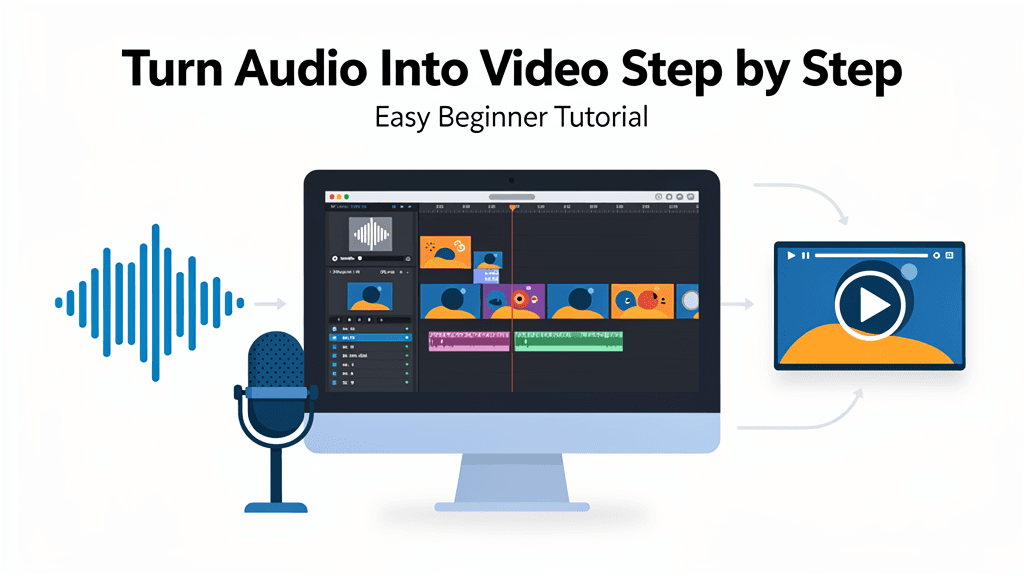
The core workflow for turning audio into video is consistent across most AI tools. Once you understand the steps, the process becomes repeatable and fast.
Step 1, Prepare Your Audio for Clean Visual Sync
AI tools rely on clear audio signals to detect beats and intensity changes. Before uploading, make sure your audio has consistent volume, no clipping, and a clean intro. For music, exporting a mastered or near-mastered version improves beat detection. For speech, clear pauses and steady pacing help caption timing.
In my experience, creators often skip this step and blame the tool later. Clean audio leads to better visuals almost every time.
Good input quality directly affects output quality.
Step 2, Upload Audio or Paste a Link
Most platforms allow you to upload an audio file or paste a link from streaming services. Uploading gives you more control and stability, especially for longer tracks. Links are faster and convenient for testing ideas.
AI immediately analyzes the audio for BPM, rhythm patterns, and dynamic shifts. This analysis stage determines how transitions and motion will behave.
Choosing upload versus link is mainly a tradeoff between speed and control.
Step 3, Pick a Video Type and Visual System
Next, decide whether you want a waveform, audiogram, or full music-driven visuals. Waveforms are fastest and minimal. Audiograms add captions and branding. Music-driven visuals offer the most expressive results but take slightly longer to generate.
For musicians and DJs, I usually recommend starting with music-driven visuals. They communicate energy and emotion better than static graphics.
Matching video type to audience expectation improves engagement.
Step 4, Set Style, Mood, and Brand Rules
This is where creative direction matters. Most AI tools let you define mood using short text prompts such as “dark cinematic,” “neon club,” or “soft lo-fi.” These prompts influence color, motion, and pacing.
I have seen better results when creators think in emotions instead of visual effects. Define how the audio should feel, not how it should look.
Clear mood guidance leads to more cohesive visuals.
Step 5, Export for TikTok, Reels, and Shorts
Export settings are not an afterthought. Social platforms prioritize native formats. Vertical 9:16 video performs best on TikTok and Instagram Reels, while YouTube Shorts also favors vertical framing.
Keep text inside safe margins and avoid long intros. AI-generated visuals should hook viewers in the first two seconds.
Platform-first exports protect reach and retention.
Where Freebeat Fits in This Workflow
This is the point where Freebeat naturally fits into the audio-to-video workflow. It works by analyzing beats, tempo, and mood, then syncing visuals automatically without manual editing. For creators who want speed and consistency, this removes a major technical barrier.
What I find useful is the balance between automation and control. You can guide visuals using text prompts, switch styles quickly, and export in social-ready formats. For music creators and visual designers, this means faster iteration without sacrificing creative intent.
Freebeat streamlines audio-driven video creation by letting sound lead every visual decision.

Common Use Cases for Audio to Video
Audio-to-video generation is no longer limited to one type of creator. I see adoption across multiple creative roles.
Independent musicians use it to release singles with minimal overhead. DJs turn live mixes into looping visuals. Content creators convert voiceovers into captioned clips. Visual designers prototype motion concepts without opening complex software.
The common factor is efficiency. AI removes repetitive editing work and allows creators to focus on sound and story.
Versatility is why audio-to-video tools keep expanding into new niches.
What to Look for in an Audio to Video AI Tool
Not all tools treat audio with the same depth. Based on testing and feedback, a few criteria matter most.
• Beat and rhythm detection that feels natural.
• Customization options for mood and pacing.
• Export flexibility for multiple platforms.
• Fast rendering to support iteration.
Tools that treat audio as structured data, not just a background element, tend to produce better results. Freebeat emphasizes beat-sync accuracy and cinematic presets, which shows in how visuals respond to sound changes.
Choosing the right tool depends on your creative priorities and publishing speed.
FAQ
How do I generate video from audio online?
Upload your audio or paste a link, choose a visual style such as waveform or music-driven scenes, then export the generated video.
What types of videos can I create from audio?
You can create waveforms, audiograms with captions, or full music-driven visuals synced to beats and mood.
Do I need editing experience to convert audio to video?
No. Most AI tools automate syncing and transitions, removing the need for timelines or keyframes.
Which format works best for social media?
Vertical 9:16 video performs best on TikTok, Instagram Reels, and YouTube Shorts.
How does AI sync visuals to audio beats?
The system analyzes BPM, rhythm changes, and intensity, then aligns motion and transitions to those points.
Can I customize visuals after generation?
Yes. Most platforms allow prompt adjustments, regeneration, or style changes without restarting.
Is audio quality important for AI video generation?
Yes. Clean audio improves beat detection and produces more accurate visual sync.
Can Freebeat be used for music releases?
Yes. It is designed for musicians and creators who need fast, beat-synced visuals without manual editing.
Conclusion
Generating videos from audio online has moved from a niche technique to a core creative workflow. When audio drives the visuals, creators gain speed without losing expression. In my experience, using a tool like Freebeat helps bridge the gap between sound and sight, making audio-first storytelling easier to share at scale.





 0% APR financing for 24-month payments.